Value added tax (VAT) Guide

Tutorial: Configure tax codes and adjust tax rates, then assign them to income or expense accounts. Next, retrieve the VAT figures and download them as an .xml file for e-VAT.

  1. Overview of Tax Codes
  2. Explanation of Tax Code Configuration
  3. Assigning Tax Codes to Accounts
  4. Transferring Input Tax (optional)
  5. VAT Reports
  6. Downloading E-VAT for the FTA
  7. Configuration for Non-VAT-Registered Businesses
  8. Good to Know
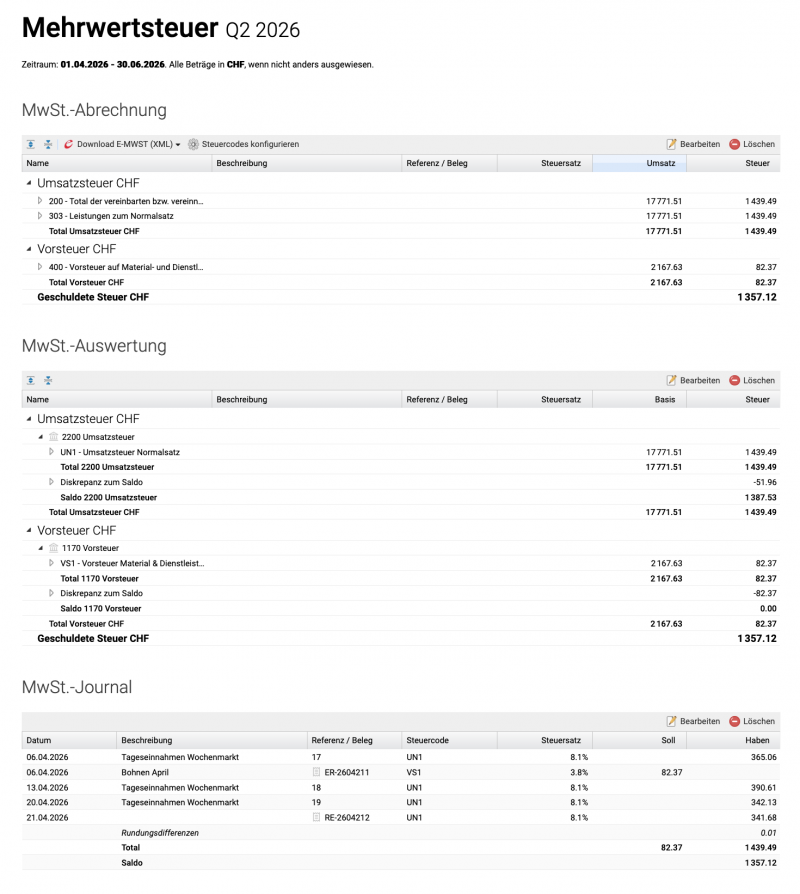
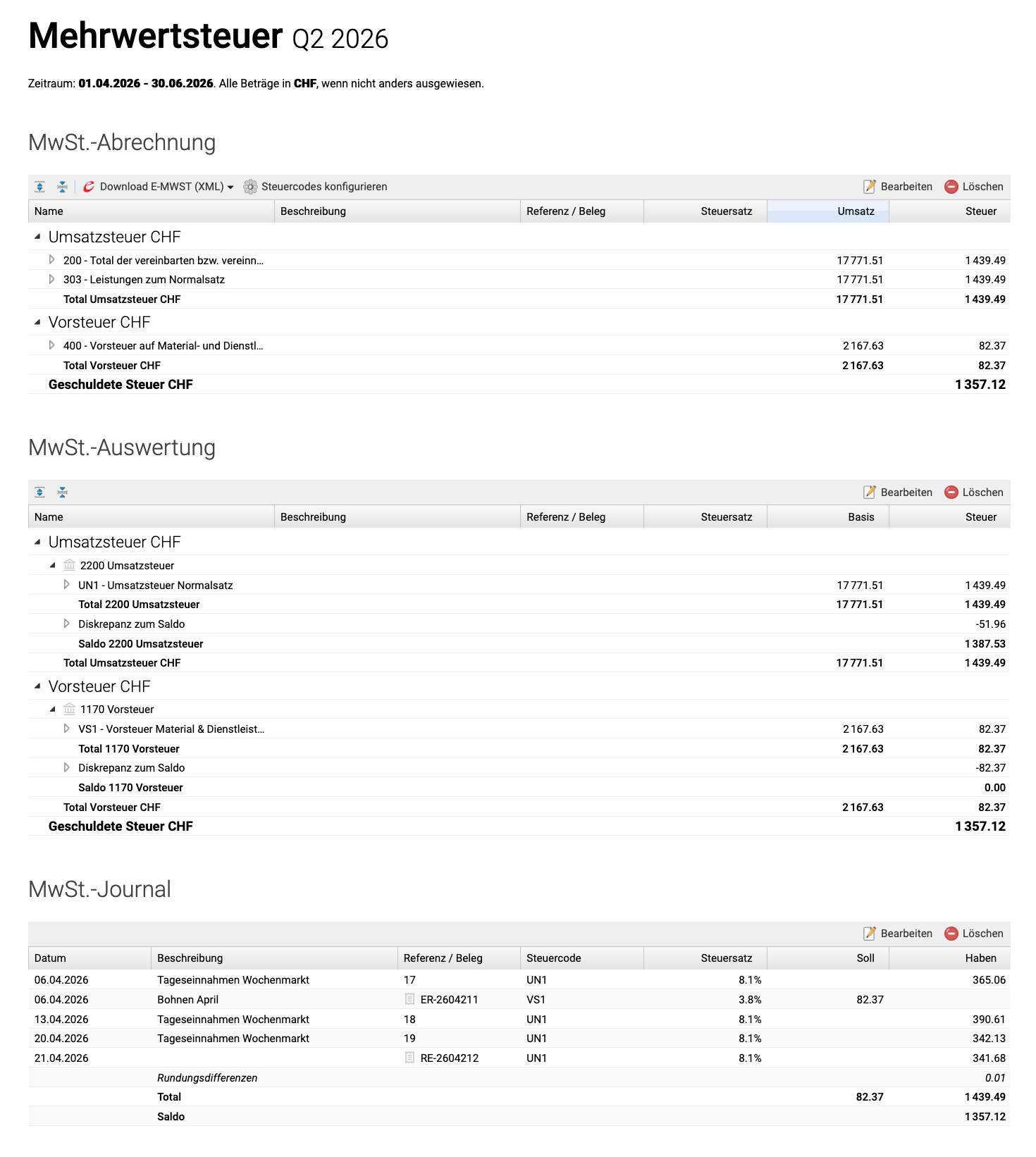
Screenshot des Mehrwertsteuerberichte Set mit der MwSt.-Abrechnung, MwSt.-Auswertung und dem MwSt.-Journal

1. Overview of Tax Codes

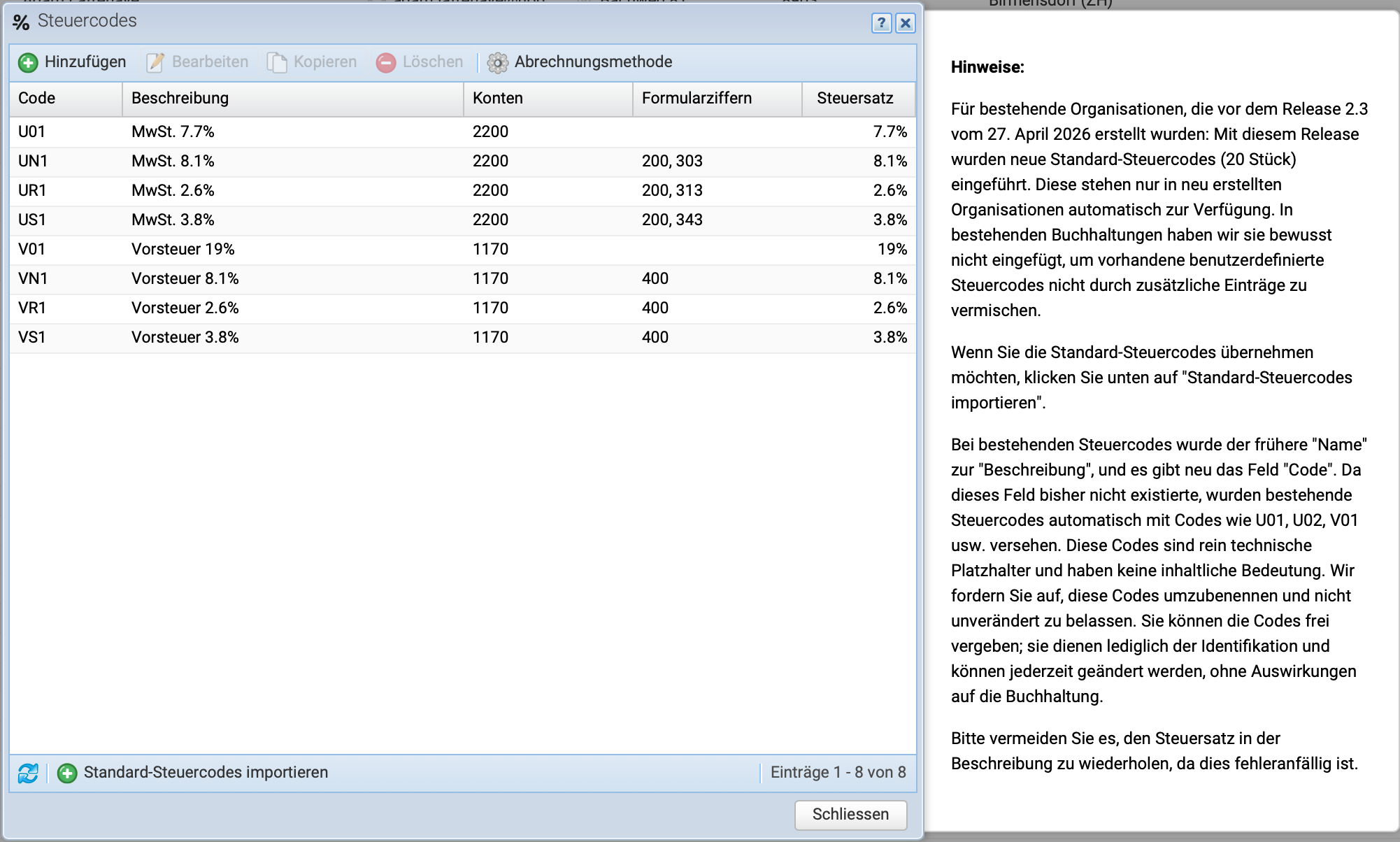
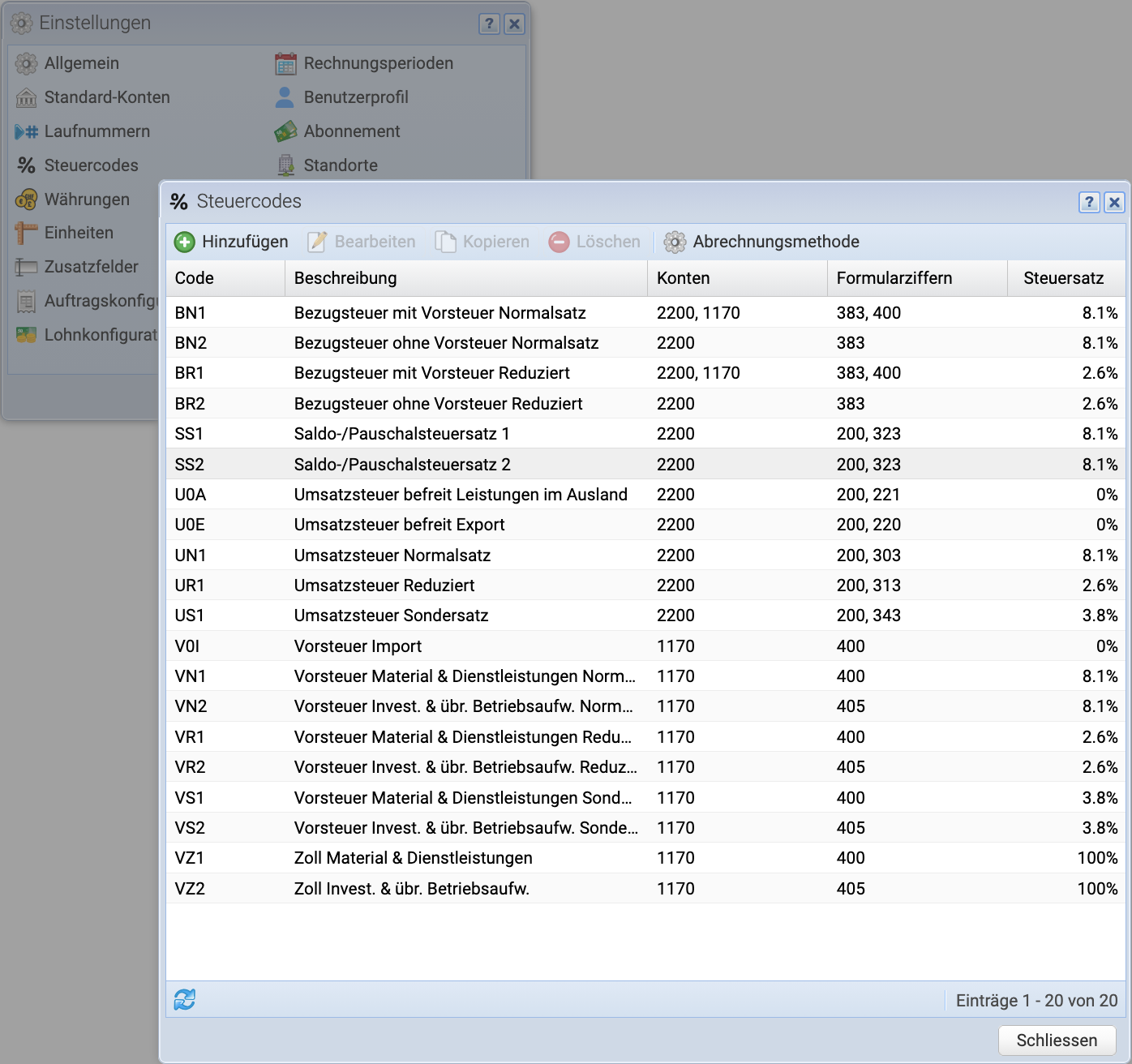
Open the dialog via Settings Tax Codes. By default, 20 tax codes are predefined.

  • BN1, BN2, BR1, BR2
    Acquisition tax with or without input tax with standard or reduced rate
  • SS1 und SS2
    pre-defined flat-rate schemes: all you need to do is entering your own flat-rate
  • U0A, U0E
    VAT exempt
  • UN1, UR1, US1
    VAT standard, reduced or special rate
  • V0I
    Input tax import
  • VN1, VR1, VS1
    Input tax materials & services standard, reduced or special rate
  • VN2, VR2, VS2
    Input tax investments & other operating expenses standard, reduced or special rate
  • VZ1, VZ2
  • Customs duties with 100% tax rates for materials & services resp. investments & other operating expenses
Screenshot of the tax code overview showing the 20 default tax codes

2. Tax Code Configuration explained

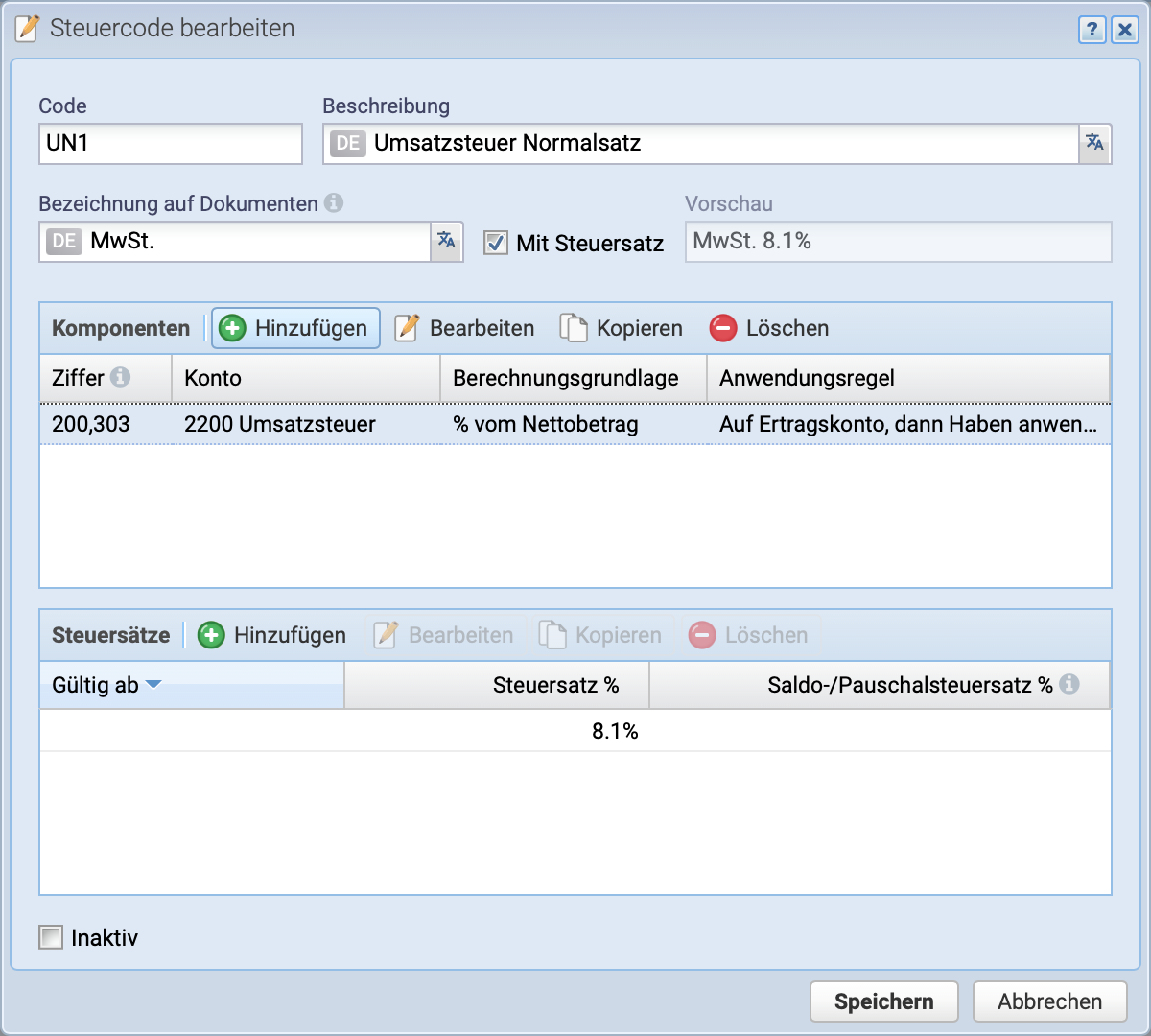
Open the configuration of an existing tax code via Edit.

Fields Explained

  • Code: Internal identifier for differentiation. Can be changed at any time.
  • Description (multilingual ): Internal name of the tax code in the list. Do not enter the tax rate here. Can be changed at any time.
  • Description on documents (multilingual ): Name displayed, e.g., on invoices
  • With tax rate: For the label on documents (see preview next to it)

Components: Tax codes can contain one or more tax components. In the standard case, there is only one component. This is configured like this:

  • Form number(s): for the VAT form
  • Account: to which the tax is booked
  • Calculation basis: By default, % of the net amount
  • Application rule: whether the tax rate should be applied to the debit or credit side, etc. (LEGACY was the previous “Magic” tax rate that served as the basis for the tax rates)

Tax rates: The tax rate calculated via the tax code is entered here. There must always be exactly one tax rate without a validity date.

  • Valid from: For changes to the tax rate, the validity date is entered here
  • Tax rate: Percentage of the tax rate
  • Balance/flat-rate tax rate: If applicable, enter the rate here
Screenshot of the Edit Tax Code dialog, where the tax rate and the configuration of the tax component(s) are set
Code     Description     Accounts     Form numbers     Tax rate     Calculation basis     Rule of application
                                     
BN1     Acquisition tax with input tax standard rate     2200, 1170     383, 400     8.1%     % of net amount     See acquisition tax tutorial
BN2     Acquisition tax without input tax standard rate     2200     383     8.1%     % of net amount     See acquisition tax tutorial
BR1     Acquisition tax with input tax reduced rate     2200, 1170     383, 400     2.6%     % of net amount     See acquisition tax tutorial
BR2     Acquisition tax without input tax reduced rate     2200     383     2.6%     % of net amount     See acquisition tax tutorial
SS1     Flat rate scheme 1     2200     200, 323     8.1%     % of net amount     Sales tax, apply to revenue account, then to the credit side
SS2     Flat rate scheme 2     2200     200, 323     8.1%     % of net amount     Sales tax, apply to revenue account, then to the credit side
U0A     VAT exempt services abroad     2200     200, 221     0.0%     % of net amount     Sales tax, apply to revenue account, then to the credit side
U0E     VAT exempt export     2200     200, 220     0.0%     % of net amount     Sales tax, apply to revenue account, then to the credit side
UN1     VAT standard rate     2200     200, 303     8.1%     % of net amount     Sales tax, apply to revenue account, then to the credit side
UR1     VAT reduced rate     2200     200, 313     2.6%     % of net amount     Sales tax, apply to revenue account, then to the credit side
US1     VAT special rate     2200     200, 343     3.8%     % of net amount     Sales tax, apply to revenue account, then to the credit side
V0I     Input tax import     1170     400     0.0%     % of net amount     Input tax, apply to expense account, then to the debit side
VN1     Input tax materials & services standard rate     1170     400     8.1%     % of net amount     Input tax, apply to expense account, then to the debit side
VN2     Input tax investments & other operating expenses standard rate     1170     405     8.1%     % of net amount     Input tax, apply to expense account, then to the debit side
VR1     Input tax materials & services reduced rate     1170     400     2.6%     % of net amount     Input tax, apply to expense account, then to the debit side
VR2     Input tax investments & other operating expenses reduced rate     1170     405     2.6%     % of net amount     Input tax, apply to expense account, then to the debit side
VS1     Input tax materials & services special rate     1170     400     3.8%     % of net amount     Input tax, apply to expense account, then to the debit side
VS2     Input tax investments & other operating expenses special rate     1170     405     3.8%     % of net amount     Input tax, apply to expense account, then to the debit side
VZ1     Customs duties materials & services     1170     400     100.0%     % of gross amount     Input tax, apply to expense account, then to the debit side
VZ2     Customs duties investments & other operating expenses     1170     405     100.0%     % of gross amount     Input tax, apply to expense account, then to the debit side

3. Set Tax Codes for Accounts

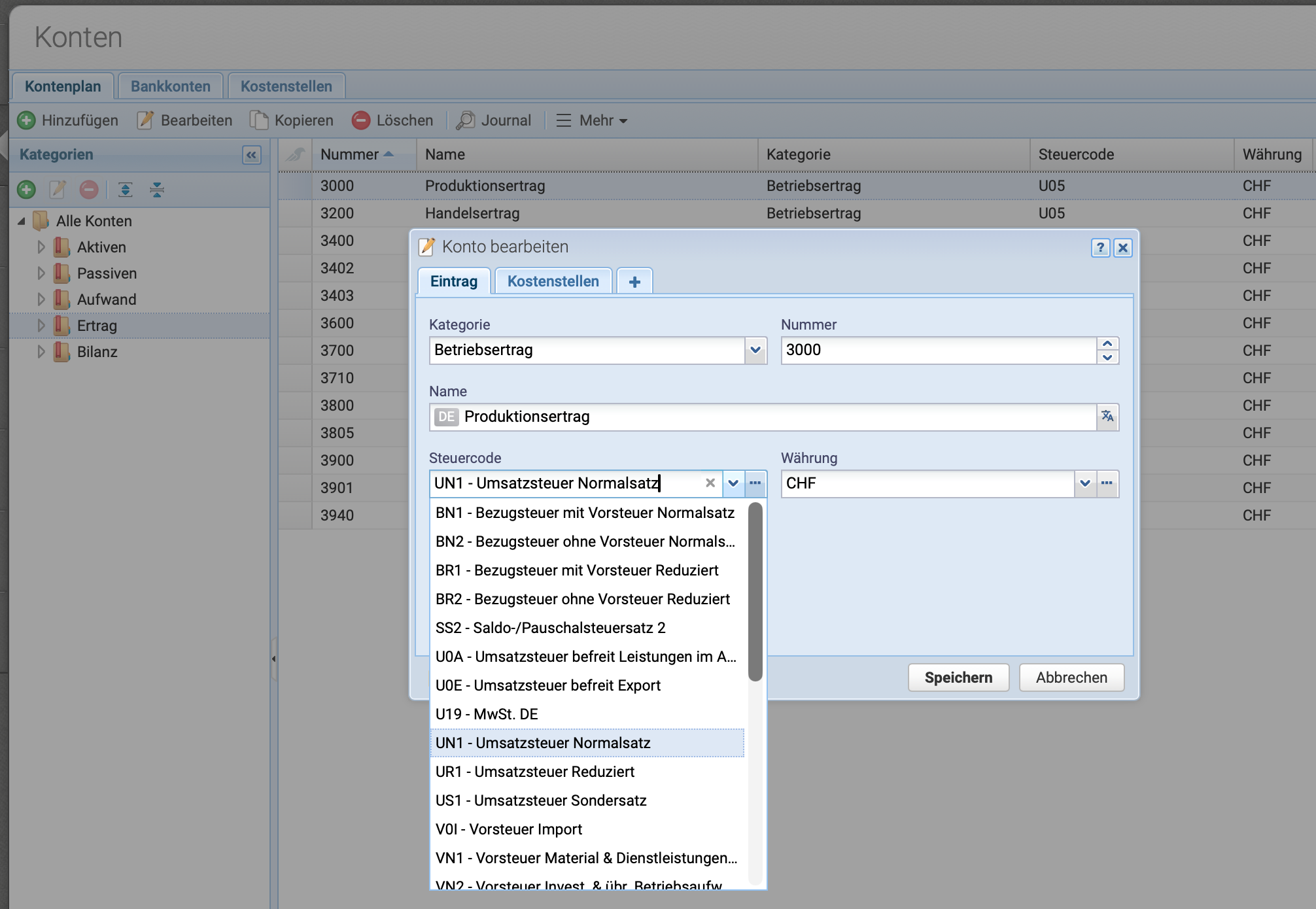
To avoid having to enter tax codes manually every time, you can set them for revenue or expense accounts. To do this, select the desired account via Accounts and click Edit.
In the Tax Code field, select the desired tax code and click Save to save the settings.
The tax code will now be automatically applied to every book entry posted to the account. Of course, the tax code can be manually removed or changed during the booking process.

Screenshot of the Edit Account dialog, where the tax code can be entered

4. Transfer Input Tax (optional)

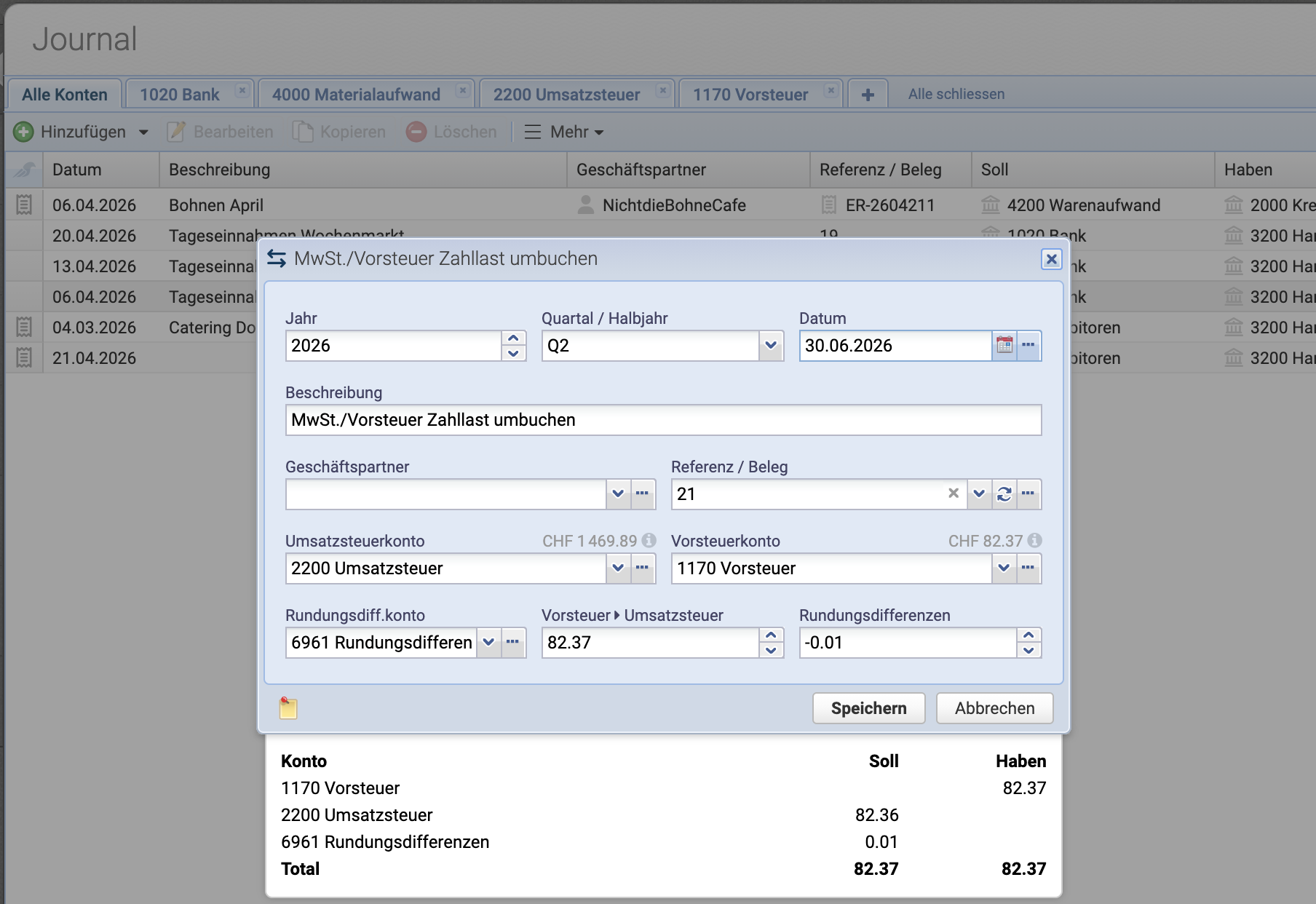
If input tax applies, it is transferred to the sales tax account in the journal via a semi-automatic booking. To do this, click More Special Bookings  Transfer VAT/Input Tax Liability in the journal.

In the dialog box, select the quarter; the fields for the sales tax account, input tax account, and the account for any rounding differences are pre-filled. The calculated input tax amount is automatically entered; now complete the booking by clicking Save.

Screenshot of the "Transfer VAT/Input Tax Liability" dialog

5. VAT reports

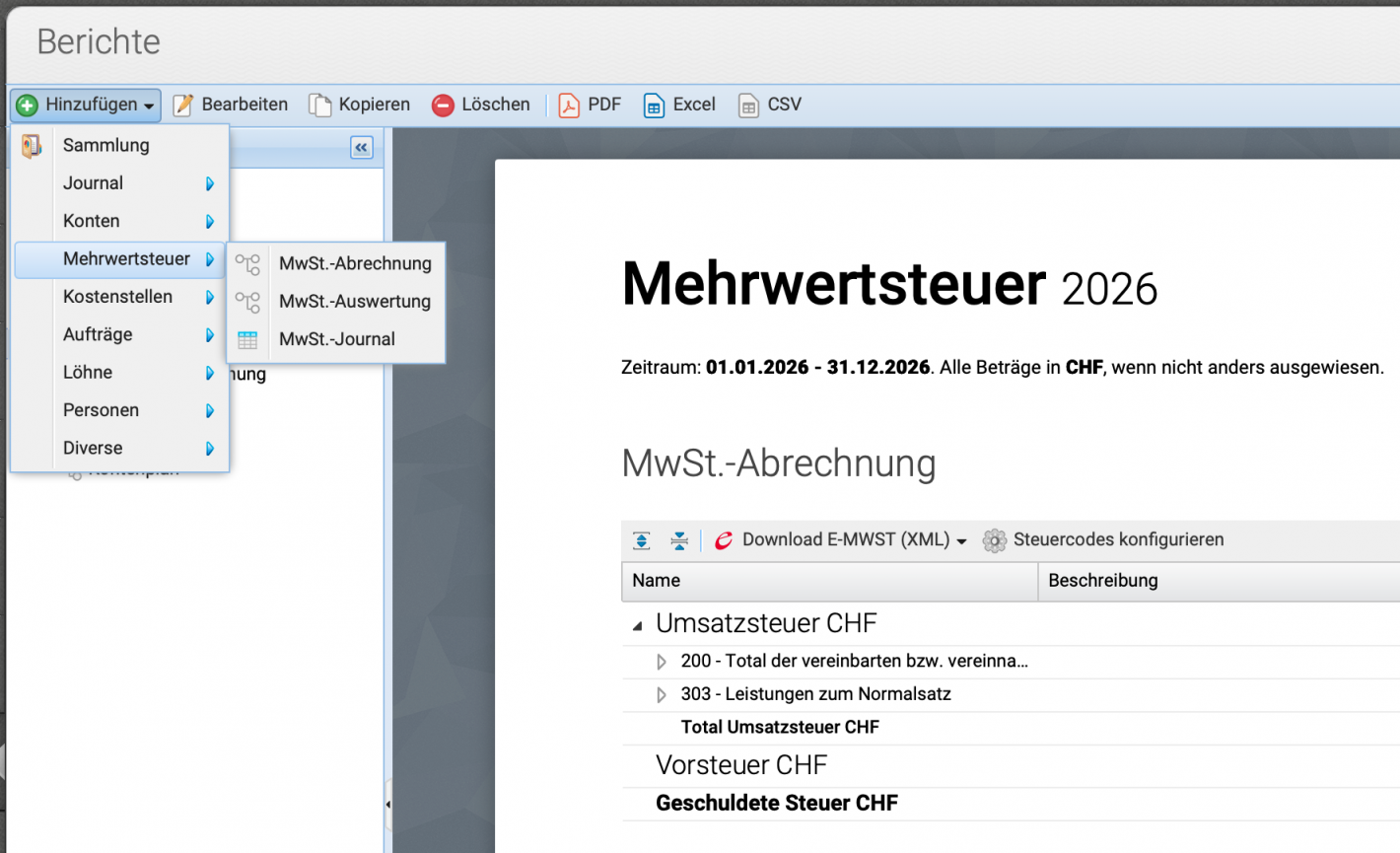
Open the VAT report collection via Reports.
If not all reports are available yet (for organizations created before May 2026), create the reports via Add VAT.
VAT Settlement shows the tax owed, structured by form number.

VAT Evaluation displays any discrepancies between the account balances and the calculated tax.

VAT Journal lists all book entries booked with tax codes.

Screenshot of the VAT Reports set, showing VAT settlement, -evaluation and VAT journal

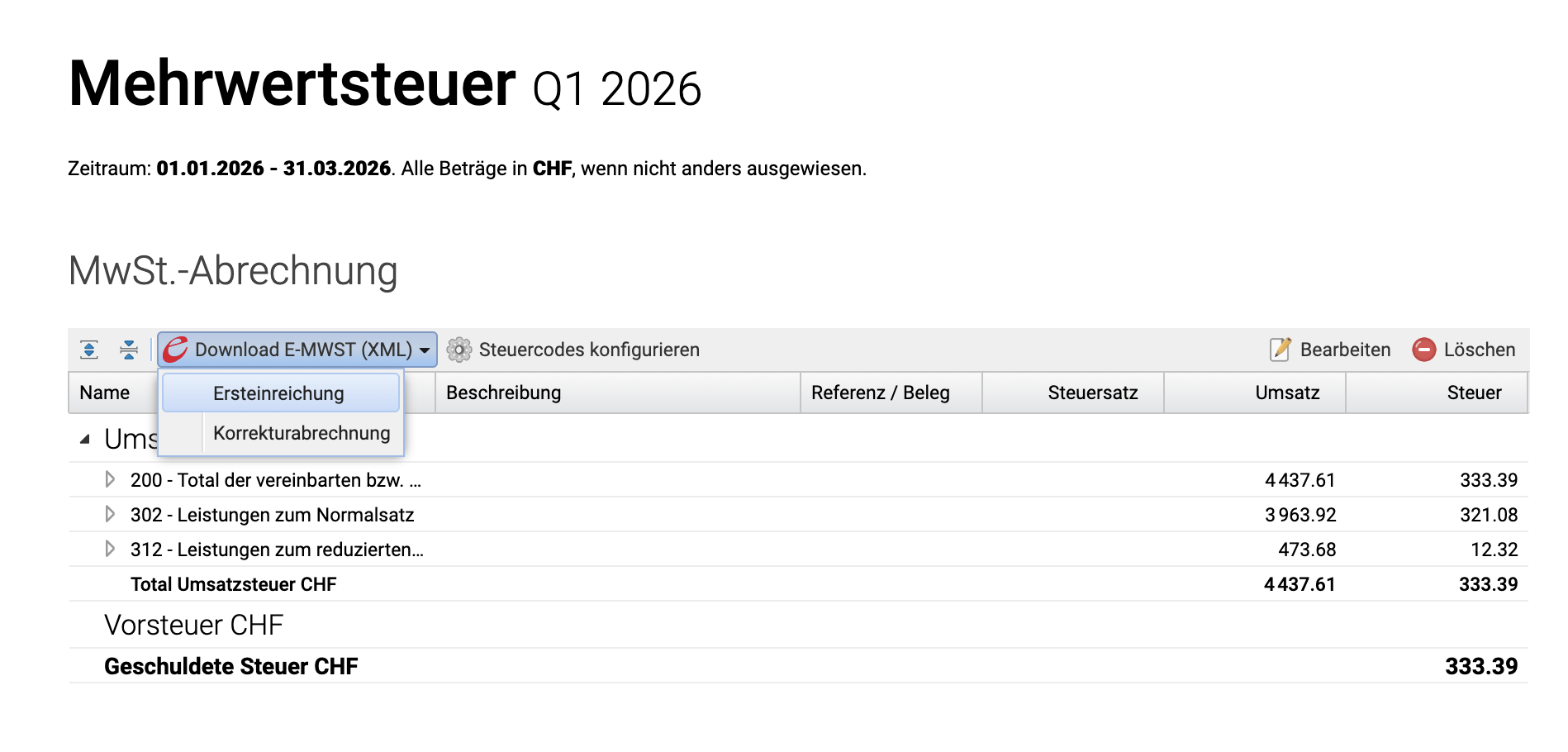
6. Download E-VAT for the FTA

Go to the VAT settlement report and click on Download E-VAT (XML). The following options are available:

  • Initial submission
  • Adjustment statement


Screenshot of the VAT settlement report showing the button to download the e-VAT XML file

7. Configuration for Non-VAT-Registered Businesses

There is no ON/OFF button for VAT :-) If you do NOT intend to use VAT, do not assign any tax codes to the accounts. To be on the safe side, you can also set all tax rates to "inactive" so that they cannot be used at all in book entries or orders.

Good to know

  • If a tax code that has already been used is no longer needed, it cannot be deleted. Check the "Inactive" box so that its appearance is grayed out and it is no longer suggested during book entries.
  • Manual book entries to the sales tax or input tax account are summarized in the VAT report via Discrepancy from Balance Direct Postings
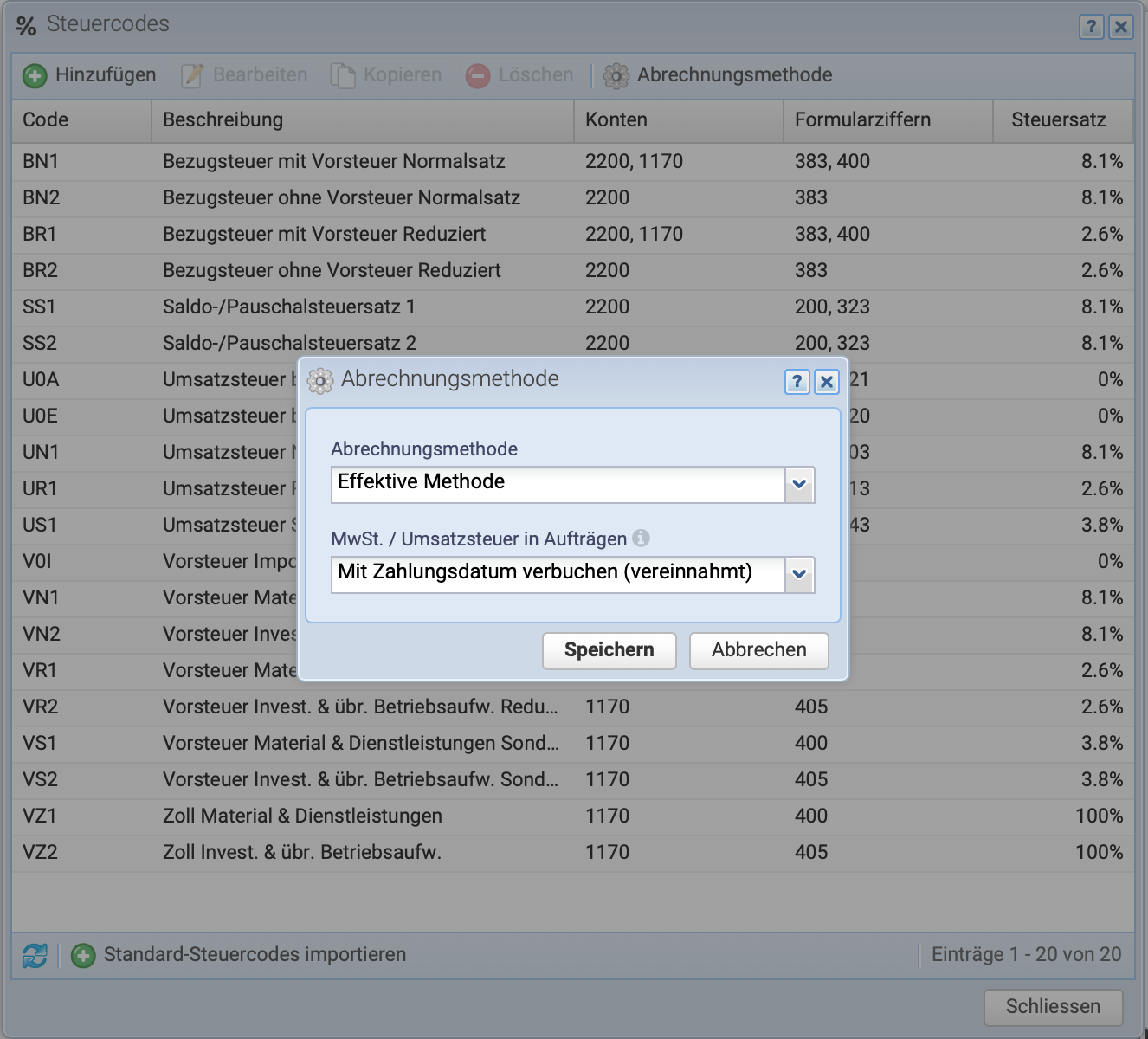
  • The settlement method is set to "Agreed" by default. If this is changed to "Received," it has no effect on book entries already made
  • Retroactively taxable? Information in this in this forum post
  • Go to the Federal Tax Administration (FTA): Link
lightbulb illustration